
Well, here we are!
This was meant to have all sorts of stuff regarding my use of Lightroom, etc but over the years and loads of effort working on plugins, etc with the earlier versions of Lightroom up to version 6 things have moved on and I haven't the notion to write it all up.
Lightroom/Photoshop is still the combo I tend to use but of course it is now using a subscription model which I tend not to like since it instills that feeling of feudalism where the master wants everybody on a leash and pushing them in the direction that Adobe wants to go. The main issue I have with the sub model is that Adobe are always trying to upgrade the software and pushing AI down your throat as well as having to logon all the time to be able to use the app, you're never quite sure what is going to change or be unavailable. I find the Creative Cloud management app to be onerous and it at times bogs down my Mac for no reason at all - why make it simple when it can be so complicated in order to get more money (not much different to the Microsoft Office feudal lord).
Anyway having said that as an amateur snapper who is not a heavy user I have found the subscription process has been OK particularly as discounted renewals are offered periodically by Amazon for the simple Photography Plan which reduces the monthly rate to an acceptable level. Buying alternative software can be as expensive if not more so and after all Lightroom/Photoshop is a rather good package to have to replace. As an example Capture One has gone the sub route as well and is not cheap for an amateur user.
So - as it stands this page is not going to very structured, more like a brain dump (take that as you will) - the odd comment may help someone out.
:: Apps I have tried and some I use (roughly categorised) ::
* Photo Editing *
Lightroom Classic - powerful photo editor with DAM features (hard to beat) COST: reasonable (Photography Plan, especially with discounting offers)
Photoshop - powerful image editor with useful plugin ecosystem (hard to beat) COST: reasonable (Photography Plan, especially with discounting offers)
Iridient Developer - impressive photo processor with good noise/sharpening/file handling features as well as simple inversion processing COST: high/pricey
DarkTable - impressive photo processor COST: free
Pixelmator - easy to use image editor (obsolete)
Pixelmator Pro - Successor to Pixelmator more photo orientated (now owned by Apple) COST: reasonable
Raw Power - powerful photo editor in Aperture style without the DAM features COST: reasonable
Capture One - powerful photo editor similar to LR COST: high/pricey
PhotoLine - useful editor with some useful plugins COST: reasonable/high
RapidRAW - new app with potential as simpler Lightroom option COST: free/donation
* Scanning *
Vuescan Pro - excellent all round scanning app COST: reasonable
Silverfast - COST: high/pricey
* Metadata *
Exif Editor COST: low/reasonable
MetaImage COST: low/reasonable
GeoTag COST: low/reasonable
* DAM *
NeoFinder COST: low/reasonable
* HDR *
Bracketeer - excellent HDR/Tone mapping standalone app COST: low/reasonable (Purchase currently unavailable via site or App Store)
LR/Enfuse - excellent LR plugin COST: low/donation
EnfuseGUI - good standalone HDR/Tone mapping app COST: high/pricey (subscription only)
HDR Forge - good standalone HDR/Tone mapping app COST: low/reasonable
* Negative Inversion/Processing *
ColorPerfect - excellent inversion plugin for Photoshop/Photoline/Affinity COST: high/pricey
FilmVert - excellent standalone inversion app COST: free
Negative Lab Pro - good inversion plugin for Lightroom COST: high/pricey
Grain2Pixel - good inversion plugin for Photoshop COST: free
NegPy - recent inversion app (used in RapidRAW) COST: free/donation
SRDx - scratch/artifact removal plugin for Photoshop COST: medium/pricey
* Panoramas *
Panorama Stitcher - excellent and simple standalone stitcher COST: low/reasonable
AutoPano Giga - excellent standalone stitcher albeit discontinued COST: last version free
As of 2026 there has been an upsurge in availability of variations of the above apps as every man and his dog is using the AI tools to do/assist with coding. Some good apps are likely to emerge but there will be a lot of crap that is just folk experimenting with "vibe" coding so it will be a minefield particularly as the bad actors will find the AI frenzy to be an easy route onto everybodies computer.
:: Lightroom/Photoshop (Photography Plan) ::
Still using this as my main photo processor since it is so hard to replace as the combo covers virtually all the bases (editing/inversion/hdr/panorama/cataloging/metadata) and the cost is not too bad. These apps are also quite polished and not at all kludgy in use. Never had memory issues with large files sizes or biggish catalogs.
To qualify this I started out with RawShooter years ago which got taken over by Adobe so Lightroom was available on a deal. When the Photography Plan was introduced the sub rate was quite low per month and offered good value (I think this simple plan is no longer on offer from Adobe though).
My only real worry is that since LR Classic the apps require connection to the main Servers periodically to keep them going a situation of not being able to use the apps might occur and it also seems difficult to stay on a nice stable version. I prefer to run an app and look for updates when I want to and not have them force fed from the high command.
The upside of the product is that because it caters for the professionals memory issues are usually not a problem and having all the features in one/two apps is handy.
I must say that Aperture was quite nice but of course got pulled from the market and Capture One does a good job also but is expensive and targets the professional market more. At least Adobe does still recognise that amateurs takes snaps too.
Darktable is an opensource offering which appears quite good, aimed at the more technical user to build a workflow with varying options, not as polished as Lightroom/Photoshop but very capable although not a drop-in LR replacement.
:: Pixelmator/Pixelmator Pro ::
Pixelmator was excellent for graphics/images and I still use it as it is easy to use with good quality however I often did get memory issues when working with very large files (Photoshop better in this regard). The healing brush in particular does a very good job.
Pixelmator Pro was more orientated toward photo images and not quite as easy to use but still good all the same (memory capacity appeared more solid). The news here is that Pixelmator Pro has been absorbed by Apple and will no doubt get a few good technical improvements however I think it will go the way of Adobe and be absorbed into the new Apple Creator Studio bundle with the associated financial lock-in.
:: Negative Inversion ::
Been trying a bit of this lately and there are a lot more inversion apps/plugins becoming available
Tried ColorPerfect and it worked rather well for me but v3 is a lot more expensive and it is only a plugin so I probably won't persist with this. I used it with Photoshop but it also works with PhotoLine which is a good value editor (and also Affinity apparently). Recently came across FilmVert and it works pretty well as a standalone app. Both Darktable and Iridient Developer do a reasonable job of inversion/adjustment.
Latterly I have been trying RapidRaw (underpinned by NegPy) which is aiming at the LR space and it does quite well but still a work in progress - the issue I have at the moment is that the image preview of the inversion is low resolution but the resolution appears to be OK when the image is processed/exported.
:: Cataloging ::
NeoFinder is a DAM that does most Digital Assets but photos work quite well and editing apps can be called via the right-click menu quite easily.
:: HDR/Tone Mapping ::
This is quite a good feature to have to improve the dynamic range of snaps. I find the dynamic range of cameras poor so in high contrast scenes I use a tone mapping tool to get the sky back or similar.
An interesting digression here is how folk say that iphone cameras aren't as good as a real camera but when it comes to dynamic range they win out handsomely thanks to the in camera processing to even out the exposure across the picture - surprising that normal cameras have yet to do this (essentially this is what the human eye/brain does to give a 'well exposed view').
Bracketeer does a good job but possibly not available as it has gone from the App Store and cannot be purchased directly from site anymore.
HDR Forge appears to work reasonably well on the natural setting.
The LR/Enfuse plugin works well but of course requires Lightroom.
As a note most HDR is typically done with bracketed exposures but I find that I get reasonable results using just the original camera image. Using the single image means there should be no alignment issues and providing the snap was taken without blown highlights then a series of bracketed exposures can be created in post and then fused together. Using Tone mapping/enfusing rather than artistic HDR methods gives a natural high dynamic range to the snap so the shadow areas and the light areas (like sky) will both show appropriate detail.
Just BTW if single image method is used with exposure brackets set in post remember to check the EXIF and alter the exposure compensation value accordingly for each bracket as apps like HDR Forge look for this parameter (which would normally be set in camera).
Example - typical bracket of -3ev, -2ev, -1ev, 1ev, 2ev, 3ev with original snap being nominal 0ev
Original snap
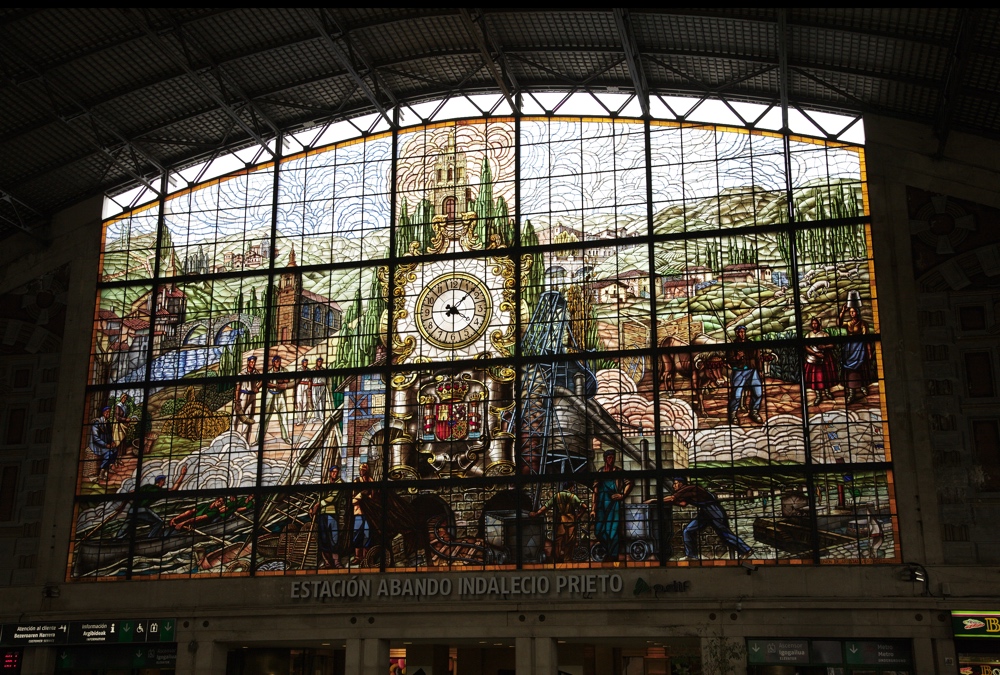
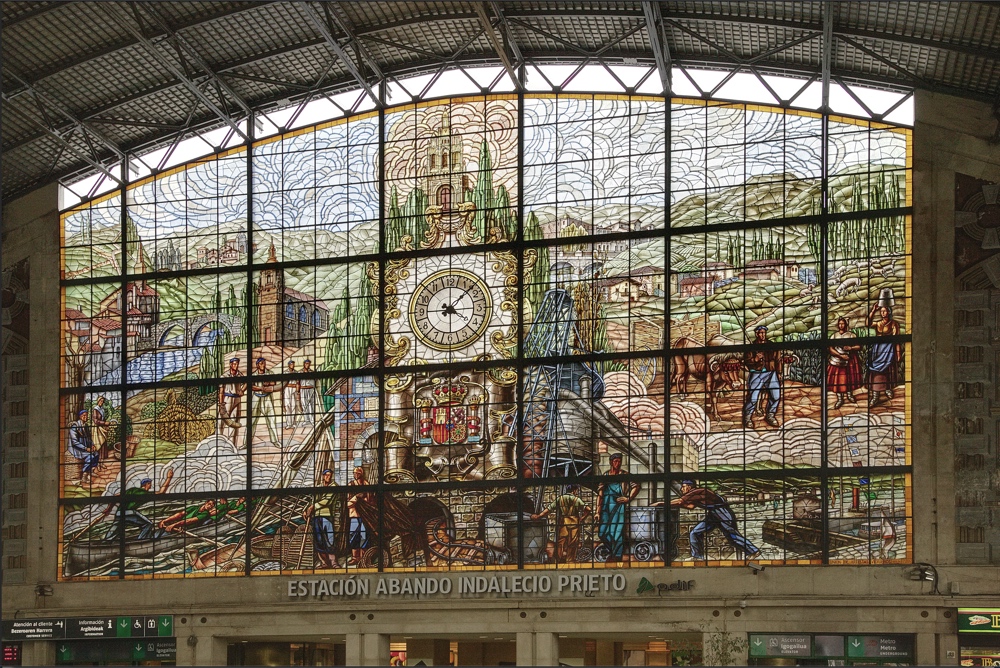
Fused snap (note perspective has also been corrected)
In lieu of the paucity of content on this page here is a snap of the pooch.

GPX Files
:: Typical GPX file ::
<?xml version="1.0" encoding="UTF-8" standalone="yes"?>
<gpx version="1.1" creator="TheMan" xmlns="http://www.topografix.com/GPX/1/1"
xmlns:xsi="http://www.w3.org/2001/XMLSchema-instance"
xsi:schemaLocation="http://www.topografix.com/GPX/1/1 http://www.topografix.com/GPX/1/1/gpx.xsd"
xmlns:gs="http://www.topografix.com/GPX/gpx_style/0/2"
xmlns:gh="https://graphhopper.com/public/schema/gpx/1.1">
<metadata>
<name>Really good name</name>
<desc></desc>
</metadata>
<wpt lat="49.43425397" lon="2.08589785"/>
<wpt lat="49.43424450" lon="2.08589997"/>
<wpt lat="49.43424274" lon="2.08590335"><ele>241.00000000</ele></wpt>
<wpt lat="49.43424425" lon="2.08588933"/>
<wpt lat="49.43441876" lon="2.08567571"/>
<trk>
<trkseg>
<trkpt lat="49.43425397" lon="2.08589785"/>
<trkpt lat="49.43424450" lon="2.08589997"/>
<trkpt lat="49.43424274" lon="2.08590335"/>
<trkpt lat="49.43424425" lon="2.08588933"/>
<trkpt lat="49.43441876" lon="2.08567571"/>
</trkseg>
</trk>
</gpx>
A: Using MetaImage as a source app --> MainMenu > Sidecar > Export CSV Table > Choose a Section > GPS Coordinates --> shows dialog box to save as .csv file.
Note: MainMenu > Gps > Export GeoTag > As GPX will show dialog but not save the file. If this did work it would no doubt save the coords as trkpts rather than waypoints which may not be suitable. Saving coords as waypoints only means that they can be used in Google and the actual route can be painted in more accurately between the waypoints and the trkpts will be generated accordingly.
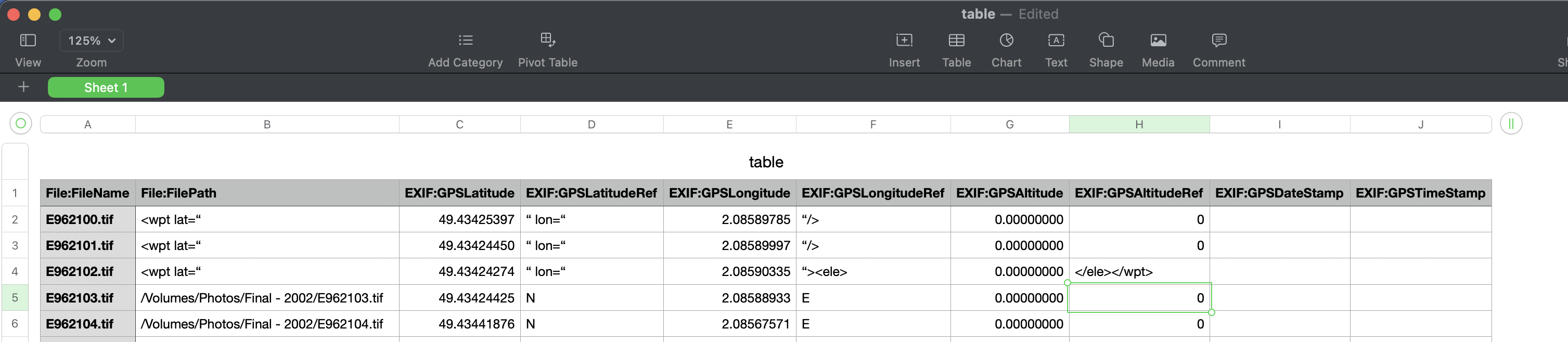
B: Open .csv file in spreadsheet and edit.
eg:
File:FileName - column can be deleted
File:FilePath - edit to <wpt lat="
EXIF:GPSLatitude - as is
EXIF:GPSLatitudeRef - edit to " lon="
EXIF:GPSLongitude - as is
EXIF:GPSLongitudeRef - edit to "/> if Altitude/DateStamps not used
EXIF:GPSLongitudeRef - edit to "><ele> if Altitude used
EXIF:GPSAltitude - column can be deleted if not used otherwise as is
EXIF:GPSAltitudeRef - edit to </ele></wpt> if Altitude used otherwise delete column (similar done if DateStamps used)
When edits done remove header row
Save/Export as CSV file
C: Open .csv file in text editor and do global replace of all comma delimiters - should end up with a wpt tag list that can be inserted into a GPX template as above.
Note: the double quotes on the coords may need to be replaced to avoid corrupt gpx file messages in apps - spreadsheets/wordprocessors can use sloping double-quotes that give problems.
Note: the <trk> tag and its children are not required if only waypoints are required in the mapping app or if the actual route is to be painted in for more accuracy. If trkpts are used then the route is painted between trkpts so fewer trkpts will give more direct line painting. Also some apps will not work with waypoint only gpx files (eg: GeoTag).
D: Google MyMaps will accept waypoint only gpx files thus allowing the actual route to be painted in (this creates the required trkpt tags). The data can be saved as a .KMZ/KML file.
E: Convert .kml file to .gpx file
https://www.gpsvisualizer.com/convert_input?convert_format=gpx&units=metric